Getting started
Prerequisites
To integrate the Mobile ID SDK for Android, the following prerequisites must be met:
- Install or update Android Studio to latest version;
- Target API level 24 (Marshmallow) or later (no ultralight);
- For Ultralight, API level 26 (Oreo) or later is needed;
To integrate the Mobile ID SDK for iOS, the following prerequisites must be met:
- Install or update Xcode to latest version;
- Target iOS 15 or later.
| Component | Minimum iOS | Physical devices | Apple silicon simulator | Intel simulator |
|---|---|---|---|---|
MobileIdSDKiOS |
15 | arm64 |
arm64 |
x86_64 |
AMAShareUltralight |
15 | arm64 |
arm64 |
x86_64 |
AMADocScanMrziOS |
15 | arm64 |
arm64 |
Not supported |
AMADocRFIDReadiOS |
15 | arm64 |
arm64 |
x86_64 |
Simulator architecture refers to the Mac architecture on which the iOS
Simulator runs. Components without an x86_64 simulator slice require an
Apple silicon Mac for simulator builds.
You must also send an ID (Bundle ID or Application ID) to Amadeus so that we can associate the API key with the application, this way your API key is protected with only authorized applications.
Enrolment SDK setup
To add the Enrolment SDK to your app, perform the following steps:
- Add these new repositories in your app top level gradle file:
maven { url "https://vbmobileidstorage.blob.core.windows.net/android/" } - Declare Mobile ID SDK and document reader provider as a dependency in your app level gradle file:
implementation("com.visionbox.mobileid.sdk:mid-sdk-enrolment:9.2.1@aar") { transitive = true }

// Optional dependencies if you want to use the Document Reader feature
implementation("com.amadeus.mdi.mob.sdk:ama-doc-scan-mrz:2.0.9")
implementation("com.amadeus.mdi.mob.sdk:ama-doc-rfid-read:2.0.9")

// Optional dependencies if you want to use the ultralight share feature
implementation("com.amadeus.mdi.mob.sdk:ama-ultralight:2.0.9")
Each separated provider dependency requires Target API level 24 (Marshmallow) or later but when importing also the Ultralight sdk, the minimum sdk should be 26 (Oreo) or later.
- Add these rules to proguard if you have problems running the application with minify enabled:
-keepclassmembers enum * { *; } -dontwarn org.joda.convert.FromString -dontwarn org.joda.convert.ToString # Keep Data classes so we can use Moshi to parse the internal BuildSubjectParameters from firebase to spoof document, bcbp and face capture data -keep class com.visionbox.mobileid.sdk.enrolment.data.** { *; } # If using DocScanMrz also add the following rule -keep class com.amadeus.docscanner.** { *; } - Sync gradle.
The Enrolment SDK and its optional components are distributed for iOS via Swift Package Manager (SPM).
You can integrate them either directly through Xcode or by editing your Package.swift manually.
Install using Xcode
-
Open your project in Xcode.
-
Navigate to File ▸ Add Packages…
-
In the dialog that appears, enter the package repository URL for the SDK you want to add:
MobileIdSDKiOS
https://github.com/vbmobile/MobileIdSDKiOSAMAShareUltralight (Optional Provider)
https://github.com/vbmobile/AMAShareUltralightAMADocScanMrziOS (Optional Provider)
https://github.com/vbmobile/AMADocScanMrziOSAMADocRfid (Optional Provider)
https://github.com/vbmobile/AMADocRfid -
Select the component versions to integrate. The following versions are the supported set for Mobile ID SDK 9.2.3:
Component Version MobileIdSDKiOS9.2.3AMAShareUltralight2.0.17AMADocScanMrziOS2.0.5AMADocRFIDReadiOS2.0.2 -
Choose the project and target to which the package should be added.
-
Click Add Package.
Once completed, Xcode will download the package and resolve all required dependencies automatically.
Install Using Package.swift
If you manage dependencies manually, add the SDKs to your Package.swift file.
1. Add the dependency
dependencies: [
    .package(
        url: "https://github.com/vbmobile/MobileIdSDKiOS",
        .exact("9.2.3")
    )
]
Replace
9.2.3with the intended version you wish to use.
2. Link the product to your target
.target(
    name: "YourAppTarget",
    dependencies: [
        .product(name: "MobileIdSDKiOS", package: "MobileIdSDKiOS")
    ]
)
Replace
YourAppTargetwith the intended app target you wish to use.
Repeat the process for
AMAShareUltralight,AMADocScanMrziOSandAMADocRfid
Once added, the Enrolment SDK APIs (and any integrated optional modules such as Ultralight or Document Scanning providers) become available to your application through the standard Enrolment SDK integration flow.
How to initialize the SDK
The Enrolment provides access to all the SDK features in a simple way. Since version 8, this was changed to a Singleton to make it accessible anywhere in your application.
You can also specify the configurations that will be needed depending on the SDK functionalities you intend to use on your app.
You just need to call the initialize method and then you can call the getInstance method to access the features individually.
The initialize method does asynchronous work to prepare everything you might need for each feature, so you will receive a callback function when it's ready to use.
The SDK also allows client apps to use their own custom views for its functionalities. These custom views must be defined when creating the Enrolment instance. For more information on custom views, please check the advanced configurations section.
val apiConfig = APIConfig(
    baseUrl = URL("YOUR BASE URL"),
    timeout = 30, // timeout in seconds
    logLevel = MobileAPILogLevel.BASIC,
    apiKey = "YOUR KEY",
    publicKey = Base64.encodeToString("YOUR PUBLIC KEY", Base64.DEFAULT), // Optional parameter to ensure requests are encrypted
)

val enrolmentConfig = EnrolmentConfig(apiConfig)

val callback = object : EnrolmentInitializerCallback {
    override fun onEnrolmentInitialized() {
        if (isAdded) {
            binding.state.text = getString(R.string.sdk_state_ready)
        }
        Log.d("Enrolment", "onEnrolmentInitialization: Enrolment initialized successfully!")
    }

    override fun onEnrolmentInitializationError(error: FeatureError) {
        Log.e("Enrolment", "onEnrolmentInitializationError: ${error.description}")
        activity?.runOnUiThread {
            binding.state.text = getString(R.string.sdk_state_error)
            val builder = AlertDialog.Builder(requireContext())
            builder.setTitle("Enrolment Initialization Error")
            builder.setMessage(error.description)
            builder.show()
        }
    }
}

Enrolment.initialize(
    context = requireContext().applicationContext,
    enrolmentConfig = enrolmentConfig,
    documentReaderProvider = <YOUR INITIATED DOCUMENT READER PROVIDER INSTANCE>,
    rfidReaderProvider = <YOUR INITIATED RFID READER PROVIDER INSTANCE>,
    ultralightProvider = <YOUR INITIATED ULTRALIGHT PROVIDER INSTANCE>,
    enrolmentInitializerCallback = callback
)
- Context - Application context;
- EnrolmentConfig - Enrolment configuration.
- EnrolmentCustomViews - Will overwrite any default view from the Enrolment SDK
- Document and RFID reader provider - Optional - The preferred provider for document and rfid read operations. More info in custom providers
- UltralightProvider - Optional. Provider for the Ultralight share flow. Must already be soft-started when supplied.
- EnrolmentInitializerCallback - To receive a callback when the enrolment is initialized or when an error occurs during the process.
To initialize the enrrolment, the following parameters must always be provided:
-
EnrolmentConfig - Enrolment configuration.
-
CompletionHandler - To receive a callback when the enrolment is initialized or when an error occurs during the process.
The following parameters must be provided if you want read documents:
- Document and RFID reader provider - The preferred provider for document and rfid read operations. More info in custom providers
The following parameters must be provided if you want customize the screens:
- EnrolmentCustomViews - Will overwrite any default view from the Enrolment SDK
As for the provider for document read operations, the user can choose any, as long as it complies with DocumentReaderScanProtocol. See example bellow:
import UIKit
import AMADocModeliOS
import AMADocScanMrziOS
import AMADocRFIDReadiOS

enum DocumentScanProviderSampleBuilder {

    /// Creates a document scanner backed by the PSS provider.
    static func amaDocScanMrziOS() -> DocumentReaderScanProtocol {
        /// Specifies the expected document type (e.g. passport)
        let documentType: DSDocumentType = .td3

        /// Uses screen size to configure capture resolution
        let bounds = UIScreen.main.bounds

        /// Returns a PSS-based document scanner
        return DocumentReaderScan(
            documentType: documentType,
            apiKey: "<YOUR_KEY>",
            pixelWidth: Int(bounds.width),
            pixelHeight: Int(bounds.height)
        )
    }
}
We are now ready to finish the implementation of the Enrolment initial setup
/// Configuration used by all backend-related SDK modules
let apiConfig = APIConfig(
    baseURL: "YOUR BASE URL", // Server base URL.
    timeout: 30, // Network timeout (seconds)
    logLevel: .basic, // SDK logging verbosity
    apiKey: "YOUR KEY", // API authentication key
    publicKey: "YOUR PUBLIC KEY" // Public key
)

/// High-level enrolment configuration
let enrolmentConfig = EnrolmentConfig(apiConfig: apiConfig)

/// Ultralight provider used for Bluetooth-based interactions
let ultralightProvider: AMAShareUltralight.Ultralight = .init()
ultralightProvider.initialiseBeamSync(apiKey: "YOUR KEY")

/// Document scanner based on the Amadeus DocScanMrz provider
let documentScanProvider: DocumentReaderScanProtocol =
    DocumentScanProviderSampleBuilder.amaDocScanMrziOS()

/// RFID reader based on the Amadeus Doc RFID Read provider
let documentRFIDProvider: DocumentReaderRFIDProtocol =
    AMADocRFIDRead(config: DocRfidReadConfig(apiConfig: apiConfig, enableLogs: true))

Enrolment.shared.initWith(
    enrolmentConfig: enrolmentConfig,
    documentScanProvider: documentScanProvider, // Any provider conforming to DocumentReaderScanProtocol
    documentRFIDProvider: documentRFIDProvider, // Any provider conforming to DocumentReaderRFIDProtocol, or nil
    ultralightProvider: ultralightProvider, // Any, as long as it complies with UltralightProtocol
    viewRegister: EnrolmentViewRegister(),
    completionHandler: { result in
        switch result {
        case .success:
            print("SDK is ready to use")
        case let .failure(error):
            print("Failure: \(error)")
        }
    }
)
There where some errors created to validate the enrolment configuration:
-
If the apiKey is not in a valid format, for example it has an extra character, you will receive via callback an InvalidApiKey error(010 - APIKey is invalid)
-
If the baseUrl is not correctly defined, for example it's using HTTP instead of HTTPS, you will receive via callback an InvalidEndpoint error(011 - Endpoint is invalid)
-
If an error occurs during the initialize method, for example internet connection during the fetch configurations, you will receive via callback an InitFailed error(012 - Error while fetching configurations. Please check your internet connection and API URL/API Key.)
If you try to call a feature while the Enrolment is not ready you will receive a NotReady error (013 - Enrolment is not ready yet. Wait for the callback.)
Data Security
In version 7.1, an hybrid encryption system was implemented to protect sensitive information and to prevent possible attacks.
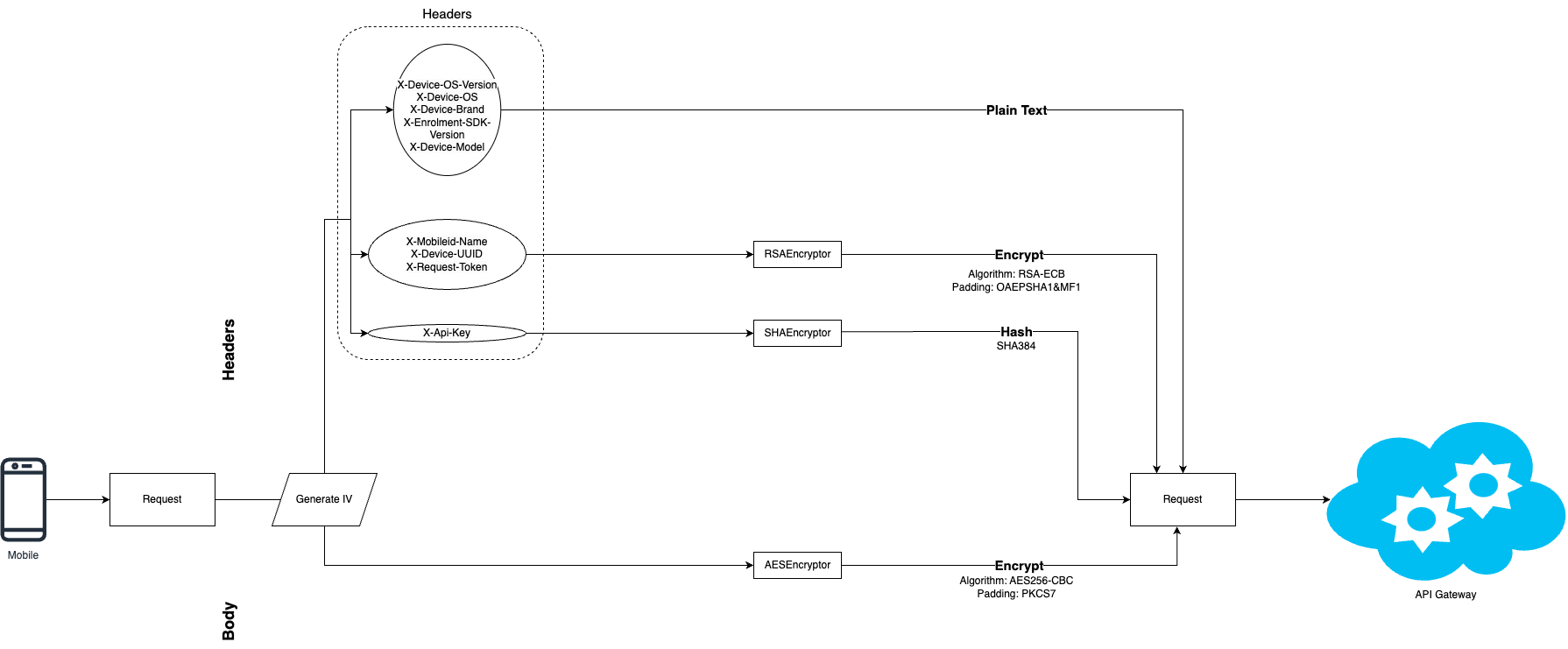
The requests that are sent from the mobile platforms (both iOS and Android) now encrypt the headers that contain sensitive information, and the api key is hashed to prevent it from being leaked.
The algorithm used to encrypt the headers is RSA-ECB with a secure padding algorithm. This cypher mechanism uses a public key to encrypt it and a private key that is only known by the Backend so that they are able to decrypt the headers and verify the data.
It is possible to pass a public key as a string in the APIConfig, but you need to pass us the matching private key so that it's uploaded into the backoffice, otherwise the default keys will be used.
The API key now also validates if the application that is making the request is known by checking it's ID. This prevents unauthorized access by using leaked API keys. You need to give us the application IDs that should be allowed to use your API key.
In matters of user sensitive information (eg: biometric face capture image), the body of every HTTP request is now encrypted by using AES and a secure padding with a dynamically generated IV. This aims to prevent leaked information by the use of proxy's or interceptors.
There's also a data integrity validation system that checks if the response information was not tampered with by comparing the body's hashed value with one of the headers.

Configurations
ApiConfig
You always need to specify the baseUrl for your Mobile ID API instance, as well as your provided API key. You can also configure the timeout value for server responses and the log level.
/**
 * Mobile API server config.
 *
 * @param baseUrl url from Mobile API server.
 * @param timeout timeout of a request.
 * @param logLevel log level for requests (e.g. Body, Headers).
 * @param apiKey key to authorize communication with Mobile API.
 * @param publicKey key to use for ciphering/deciphering for secure communications.
 */
data class APIConfig(
    val baseUrl: URL,
    val timeout: Long,
    val logLevel: MobileAPILogLevel = MobileAPILogLevel.NONE,
    val apiKey: String,
    val publicKey: String? = null,
)
/// Configuration to communicate with the Mobile API
public struct APIConfig {
    /// Server base URL.
    public let baseURL: String
    /// Request timeout.
    public let timeout: TimeInterval
    /// Logging level.
    public let logLevel: MobileIdSDKiOS.APILogLevel
    /// API Key
    public let apiKey: String
    /// Public Key
    public let publicKey: String?
}
- baseUrl: Url from Mobile API server;
- timeout: timeout of a request in seconds;
- logLevel: log level for requests; (Deprecated in favor of Log Configuration)
- apiKey: key to authorize communication with Mobile API;
- publicKey: key to use for ciphering/deciphering for secure communications. It needs to be encoded in Base64.
@Deprecated(message = "API Log Level is going away. Check out LogConfiguration on EnrolmentConfig")
enum class MobileAPILogLevel {
    /**
    * no logs.
    */
    NONE,

    /**
    * logs request and response lines.
    */
    BASIC
}
public enum APILogLevel {
    /// No logs.
    case none
    /// Logs http status code and name of endpoint.
    case basic
}
APISecurityConfig
You can use the security config to specify a list of SSL certificates to be trusted when connecting the SDK to a server instance. By providing this configuration, you are activating certificate pinning for every network request made by the SDK.
data class APISecurityConfig(
    val certificates: List<X509Certificate> = listOf()
)
struct APISecurityConfig {
    /// Certificates to verify against Certificate Pinning
    let sslCertificates: [SecCertificate]
    init(sslCertificates: [SecCertificate]) {
        self.sslCertificates = sslCertificates
    }
}
- certificates: used for certificate pinning
Log Configuration
A log configuration can be added to the EnrolmentConfig to get additional info on some of the operations of the SDK. Console and File strategies are available, these can be useful when integrating this solution and can sometimes provide more information about certain behaviours or errors.
class LogConfiguration(
    val logLevel: LogLevel,
    val logStrategy: LogStrategy
)

enum class LogLevel {
    WARN, ERROR, INFO, VERBOSE, DEBUG
}

enum class LogStrategy {
    CONSOLE, FILE
}
A log strategy can be passed to the Enrolment.initWith to get additional info on some of the operations of the SDK. Console and File strategies are available, this can be useful when integrating this solution and can sometimes provide more information about certain behaviours or errors.
public enum LogStrategy {
/// Outputs logs to the console/standard output
///
/// - Parameter level: The minimum log level to display. Messages below
///   this level will be filtered out. For example, if set to `.warn`,
///   only warning and error messages will be logged.
case console(level: LogLevel)
}

public enum LogLevel: Int {
/// No logging will occur
case none

/// Logs error messages
/// Used for critical failures and exceptions
case error

/// Logs warning messages
/// Indicates potential issues that don't prevent execution
case warn

/// Logs user or SDK behavior
/// Suitable for tracking basic user interactions
case info
}
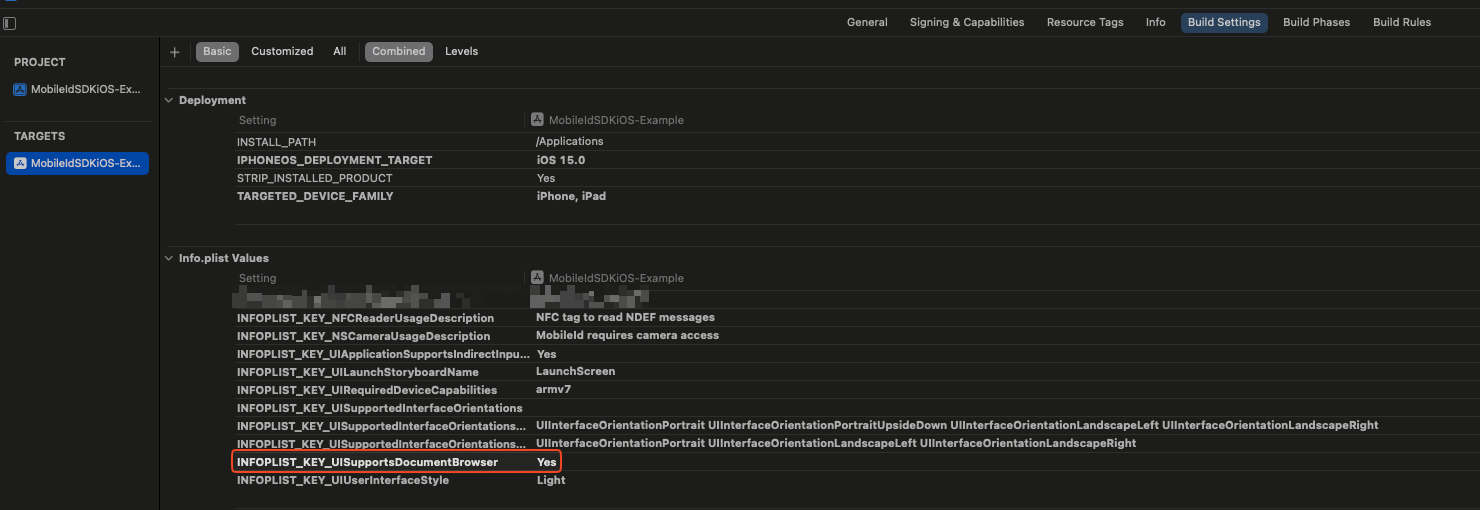
In order to find the log files in the iPhone's Files application, the Info.plist key UISupportsDocumentBrowser setting in Build Settings should be set to Yes
EnrolmentConfig
The EnrolmentConfig is where you set the apiConfig and the apiSecurityConfig.
data class EnrolmentConfig(
    val apiConfig: APIConfig,
    val apiSecurityConfig: APISecurityConfig = APISecurityConfig(),
    val language: Locale,
    val logConfiguration: List<LogConfiguration> = listOf(
      LogConfiguration(logLevel = LogLevel.INFO, logStrategy = LogStrategy.CONSOLE)
    ),
)
/// Configuration for SDK in general
public struct EnrolmentConfig {

    /// Configuration to communicate with the Mobile API
    public let apiConfig: MobileIdSDKiOS.APIConfig

    /// Configuration to verify security against Certificate Pinning
    public let apiSecurityConfig: MobileIdSDKiOS.APISecurityConfig

    public init(apiConfig: MobileIdSDKiOS.APIConfig, apiSecurityConfig: MobileIdSDKiOS.APISecurityConfig = APISecurityConfig(sslCertificates: []), logStrategies: [VBUtils.LogStrategy] = [.console(level: .info)], language: Locale? = nil)
}
func apiConfig() -> APIConfig {
    fatalError("Provide your APIConfig")
}
func apiSecurityConfig() -> APISecurityConfig {
    fatalError("Provide your APISecurityConfig")
}
func logStrategies() -> [VBUtils.LogStrategy] {
    fatalError("Provide your LogStrategy")
}
func language() -> Locale? {
    fatalError("Provide your Locale")
}
let enrolmentConfig = EnrolmentConfig(apiConfig: apiConfig(),
                                      apiSecurityConfig: apiSecurityConfig(),
                                      logStrategies: logStrategies(),
                                      language: language())
- apiConfig: API configuration;
- apiSecurityConfig: API security configuration;
- language: You can set the language in which the SDK will appear. The default is the system language;
- logStrategies: Log Level and Strategy to be used.
Advanced Configurations
The other configurations are used by their corresponding facade method:
- BoardingPassCustomViews - Specifies the boarding pass custom views.
- BiometricFaceCaptureCustomViews - Specifies the face capture custom views.
- DocumentReaderCustomViews - Specifies the document reader custom views.
- BiometricFaceMatchCustomViews - Specifies the face match custom views.
- SubjectCustomViews - Specifies the subject custom views.
These custom views are instantiated in the sdk using reflection, so for this reason, pro-guard might obfuscate some constructors. It's important to use pro-guard rules on the custom views that you created to avoid issues on the building process. Check here for more details on how to create rules to keep the class.
The following sections show some examples of the mentioned configurations.
val enrolmentCustomViews = EnrolmentCustomViews(
    documentReaderCustomViews = DocumentReaderCustomViews(
        loadingView = DocumentReaderCustomViewLoading::class.java,
        rfidInstructionsView = DocumentReaderCustomViewRfidInstructions::class.java,
        rfidSearchView = DocumentReaderCustomViewRfidSearch::class.java,
        rfidProcessView = DocumentReaderCustomViewRfidProcess::class.java,
    ),
    boardingPassCustomViews = BoardingPassCustomViews(
        loadingView = BoardingPassCustomViewLoading::class.java
    ),
    faceCaptureCustomViews = BiometricFaceCaptureCustomViews(
        loadingView = BiometricFaceCaptureCustomViewLoading::class.java
    ),
    faceMatchCustomViews = BiometricFaceMatchCustomViews(
        loadingView = BiometricFaceMatchCustomViewLoading::class.java
    ),
    subjectCustomViews = SubjectCustomViews(
        loadingView = SubjectCustomViewLoading::class.java
    ),
)

Enrolment.initialize(
    context = requireContext().applicationContext,
    enrolmentConfig = enrolmentConfig,
    enrolmentCustomViews = enrolmentCustomViews,
    documentReaderProvider = documentReaderProvider,
    rfidReaderProvider = rfidReaderProvider,
    enrolmentInitializerCallback = enrolmentInitializerCallback
)
You can now apply and implement your own UI solutions for the SDK with the new feature of custom views for the Mobile ID SDK, giving you even more control with the UI solutions. To enable this feature in your application, you need to create your view and make it conform to the view protocol that you intend to replace in the SDK. Then, you register that view in the new EnrolmentViewRegister class of the SDK and you build the enrolment instance with that viewRegister instance.
/// Demonstrates how an SDK integrator can optionally register
/// custom UI views for different enrolment steps.
///
/// In a real integration, each `Bool.random()` represents
/// a conscious decision made by the app developer using the SDK.
/// These are random ONLY for demonstration purposes.
func viewRegister() {

    let viewRegister = EnrolmentViewRegister()

    // MARK: - Biometric Face Capture (Optional)

    let enableBiometricFaceCaptureCustomViews = Bool.random()
    if enableBiometricFaceCaptureCustomViews {
        viewRegister.registerBiometricFaceCaptureLoadingView(
            BiometricFaceCaptureSampleLoadingView.self
        )
    }

    // MARK: - Boarding Pass Scanner (Optional)

    let enableBoardingPassCustomViews = Bool.random()
    if enableBoardingPassCustomViews {
        viewRegister.registerBoardingPassScannerLoadingView(
            BoardingPassScanLoadingView.self
        )
    }

    // MARK: - Document Reader (Optional)

    let enableDocumentReaderCustomViews = Bool.random()
    if enableDocumentReaderCustomViews {
        viewRegister.registerDocumentReaderLoadingView(
            DocumentReaderSampleLoadingOverlayView.self
        )

        viewRegister.registerDocumentReaderRFIDInstructionsView(
            DocumentReaderSampleRFIDInstructionsView.self
        )
    }

    // MARK: - Face Match (Optional)

    let enableFaceMatchCustomViews = Bool.random()
    if enableFaceMatchCustomViews {
        viewRegister.registerBiometricMatchLoadingView(
            BiometricMatchSampleLoadingOverlayView.self
        )
    }

    // MARK: - Subject Processing (Optional)

    let enableSubjectCustomViews = Bool.random()
    if enableSubjectCustomViews {
        viewRegister.registerSubjectLoadingView(
            SubjectSampleLoadingOverlayView.self
        )
    }

    // Not relevant for this example
    let enrolmentConfig: EnrolmentConfig! = nil

    // SDK initialization
    Enrolment.shared.initWith(
        enrolmentConfig: enrolmentConfig,
        documentScanProvider: nil,
        documentRFIDProvider: nil,
        ultralightProvider: nil,
        viewRegister: viewRegister
    ) { result in
        switch result {
        case .success:
            print("SDK is ready to use")
        case .failure(let error):
            print("Failure: \(error)")
        }
    }
}
The calls guarded by Bool.random() are for demonstration purposes only, simulating the decisions an SDK consumer may take when integrating the SDK into their application.
In a real-world integration:
- The app developer explicitly decides which custom views to provide
- Any view not registered will fall back to the SDK’s default UI
- Multiple, one, or no custom views can be registered
Example of a real integration (non-random):
viewRegister.registerDocumentReaderLoadingView(MyCustomLoadingView.self)
viewRegister.registerDocumentReaderRFIDInstructionsView(MyRFIDHelpView.self)
Custom Providers
You can check with more details what are the custom providers available and how to import them in the custom providers section of the documentation available here.
Localization Support
If you wish to add localization support to your application or change some of the default values, you will need to add the strings used by Enrolment SDK to each locale strings.xml file.
You can redefine each string in the Enrolment SDK with the appropriate translations.
This ensures that the Enrolment SDK uses the correct string resources when the user's device is set to a language supported by your application.
To do this, you'll need to reference the identifiers found in the values.xml file from the latest release.
You can find the values.xml file with all available strings in the project: External Libraries -> Gradle: com.visionbox.mobileid.sdk:mid-sdk-enrolment:x.x.x@aar -> res -> values -> values.xml.
If you wish to change the default string values, you will need to access the strings you want to change through EnrolmentProtocol.theme.strings. In the ThemeStrings struct you can find the various types of strings you can modify to your liking by assigning a localizable key or a literal string value.
If you wish to add localization support to your application, you need to create a String File(s) for your app and specify which language the file represents.
If you pass a language to EnrolmentConfig and do not have a String File that matches said language and the SDK does, the SDK will use its file, but if we do not have a String File of said language, the key value of the localizable key raw value will be used in the UI.
If no language is passed to EnrolmentConfig, the SDK will select the device's default language and use a String File compatible with said language. The same logic applies in this case. If you do not have a file for the correspondent language, the SDK will select its file, but if it also does not have one, the localizable key raw values will be displayed in the UI.
RFID Chip Processing
In order to use the RFID feature, the user must give the NFC permission in runtime, otherwise it won't work. We already handle the permission check and added to the manifest the following:
<uses-permission android:name="android.permission.NFC" />
So when using the RFID feature, the user will be prompted to concede the permission if it hadn't already.
Here you can find the necessary changes in order to read the RFID chip present in some documents:
Permissions
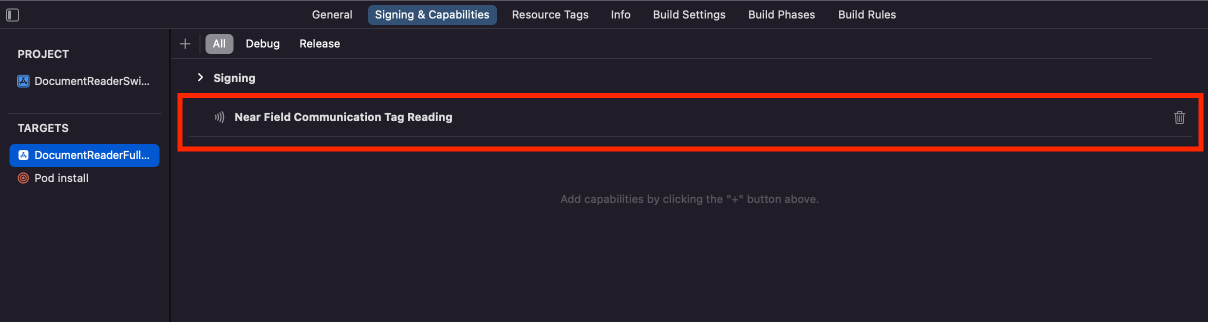
Add Near Field Communication Tag Reading under the Capabilities tab for the project’s target:
 Add the NFCReaderUsageDescription permission to your Info.plist file as its needed to access the NFC hardware:
<key>NFCReaderUsageDescription</key>
<string>NFC tag to read NDEF messages</string>
<key>com.apple.developer.nfc.readersession.iso7816.select-identifiers</key>
<array>
    <string>A0000002471001</string>
    <string>E80704007F00070302</string>
    <string>A000000167455349474E</string>
    <string>A0000002480100</string>
    <string>A0000002480200</string>
    <string>A0000002480300</string>
    <string>A00000045645444C2D3031</string>
</array>
Camera Permissions
In order for the SDK to use the camera, the user must grant permission to do so.
In order to use the camera related features, the user must give the camera permission in runtime, otherwise it won't work. We already handle the permission check and added to the manifest the following:
<uses-permission android:name="android.permission.CAMERA" />
So when using any feature that needs the camera, the user will be prompted to concede the permission if it hadn't already.
To configure access alerts, follow the steps bellow.
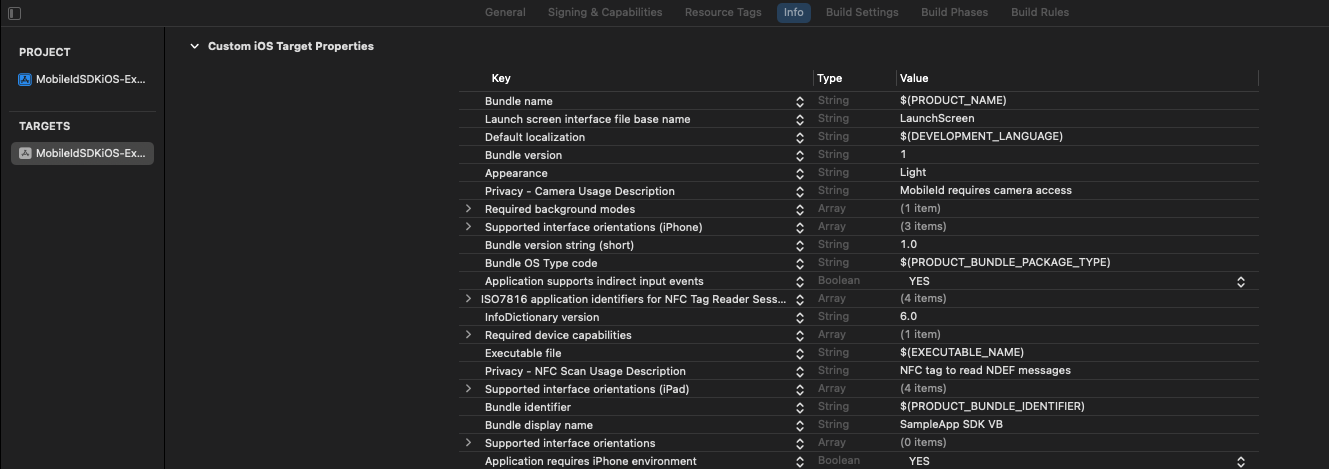
In the app's Info.plist file, include NSCameraUsageDescription.
After including NSCameraUsageDescription in your Info.plist file, provide a message that explains the user why your app needs to capture media.
Custom Styles
You can apply your app’s own colors and fonts to all the provided SDK layout solutions, which means that the SDK views can adapt to your app’s design. It brings control and allows the maintenance of consistency in terms of brand communication when using the SDK custom views for data presentation.
The fonts we are using in the SDK are named enrolment_sdk_medium and enrolment_sdk_regular. If you use fonts with the same name in your app, they will be used, otherwise the SDK will use its own. We do not advise to override strings. Our strings’ names in strings.xml end in _sdk_enrolment precisely to prevent any unexpected behaviors.
The list of colors used in each screen will be available on their respective documentation for your reference.
You can apply your app’s own styles to all the provided SDK layout solutions, which means that the SDK views can adapt to your app’s design. It brings control and allows the maintenance of consistency in terms of brand communication when using the SDK custom views for data presentation.
The following image shows an example of how you could override SDK values for fonts, colors and strings:
Enrolment.shared.theme.fonts.medium = FontDescription(name: "FontName-Medium")
Enrolment.shared.theme.colors.faceCapture.stateError = UIColor(name: .colorPrimary)
Enrolment.shared.theme.strings.faceCapture.title = "Face Capture Title"
Please check the complete list of colors for your reference:
| Name | Value | Section |
|---|---|---|
| common.clear | Clear_SdkEnrolment | Base |
| common.black | Black_SdkEnrolment | Base |
| component.dismissButton | DismissButton_SdkEnrolment | Base |
| component.transparentOverlay | TransparentOverlay_SdkEnrolment | Base |
| component.animationIndicatorBackground | AnimationIndicationBackgroud_SdkEnrolment | Base |
| component.animationIndicatorMessage | AnimationIndicatorMessage_SdkEnrolment | Base |
| datafield.title | DataFieldTitle_SdkEnrolment | Base |
| datafield.value | DataFieldValue_SdkEnrolment | Base |
| datafield.error | DataFieldError_SdkEnrolment | Base |
| button.primaryTitle | ButtonPrimaryTitle_SdkEnrolment | Button |
| button.primaryBackground | ButtonPrimaryBackground_SdkEnrolment | Button |
| button.secondaryTitle | ButtonSecondaryTitle_SdkEnrolment | Button |
| button.secondaryBackground | ButtonSecondaryBackground_SdkEnrolment | Button |
| button.secondaryBorder | ButtonSecondaryBorder_SdkEnrolment | Button |
| documentData.background | DocumentDataBackground_SdkEnrolment | Document read |
| documentData.title | DocumentDataTitleSdkEnrolment | Document read |
| documentData.subtitle | DocumentDataSubtitle_SdkEnrolment | Document read |
| documentData.detailBackground | DocumentDataDetailBackground_SdkEnrolment | Document read |
| rfidData.background | RfidDataBackground_SdkEnrolment | Document read |
| rfidData.title | RfidDataTitle_SdkEnrolment | Document read |
| rfidData.subtitle | RfidDataSubtitle_SdkEnrolment | Document read |
| faceCapture.background | FaceCaptureBackground_SdkEnrolment | Face capture |
| faceCapture.title | FaceCaptureTitle_SdkEnrolment | Face capture |
| faceCapture.flash | FaceCaptureFlash_SdkEnrolment | Face capture |
| faceCapture.stateLabel | FaceCaptureStateLabel_SdkEnrolment | Face capture |
| faceCapture.stateValid | FaceCaptureStateValid_SdkEnrolment | Face capture |
| faceCapture.stateError | FaceCaptureStateError_SdkEnrolment | Face capture |
| faceCapture.stateNeutral | FaceCaptureStateNeutral_SdkEnrolment | Face capture |
| boardingPassScan.background | BoardingPassScanBackground_SdkEnrolment | Boarding pass scan |
| boardingPassPreview.background | BoardingPassPreviewBackground_SdkEnrolment | Boarding pass scan |
| boardingPassPreview.legHeader | BoardingPassPreviewLegHeader_SdkEnrolment | Boarding pass scan |
Dependencies
-
MLKit
- com.google.mlkit:barcode-scanning:17.3.0
- com.google.mlkit:face-detection:17.1.0
- androidx.camera:camera-camera2:1.4.0
- androidx.camera:camera-lifecycle:1.4.0
- androidx.camera:camera-view:1.4.0
-
Lottie
- com.airbnb.android:lottie:6.6.0
| Name | Version | Repository |
|---|---|---|
| AMADocModeliOS | 2.0.3 | https://github.com/vbmobile/AMADocModeliOS |
| CwlCatchException | 2.2.1 | https://github.com/mattgallagher/CwlCatchException |
| CwlPreconditionTesting | 2.2.2 | https://github.com/mattgallagher/CwlPreconditionTesting |
| Lottie (SPM) | 4.4.1 | https://github.com/airbnb/lottie-spm |
| Matomo SDK iOS | 7.7.0 | https://github.com/vbmobile/matomo-sdk-ios |
| Nimble | 12.3.0 | https://github.com/Quick/Nimble |
| OHHTTPStubs | 9.1.0 | https://github.com/AliSoftware/OHHTTPStubs |
| Quick | 7.6.2 | https://github.com/Quick/Quick |
| Swift Algorithms | 1.2.1 | https://github.com/apple/swift-algorithms |
| Swift Argument Parser | 1.7.1 | https://github.com/apple/swift-argument-parser |
| Swift Numerics | 1.1.1 | https://github.com/apple/swift-numerics |
| VBDependencyInjector | 1.0.7 | https://github.com/vbmobile/VBDependencyInjector |
| VBImageProcessor | 1.2.2 | https://github.com/vbmobile/VBImageProcessor |
| VBNetworkClient | 5.1.1 | https://github.com/vbmobile/VBNetworkClient |
| VBUtils | 2.0.2 | https://github.com/vbmobile/VBUtils |
Glossary and Terminology
The following descriptions include the terminology found within this manual:
| Name | Description |
|---|---|
| API (Application Program Interface) | An application program interface is a set of routines, protocols, and tools for building software applications. Basically, an API specifies how software components should interact. |
| APIS (Advance Passenger Information System) | An electronic data interchange system intended to enhance border security. An APIS collects and shares limited data on passengers and crew members, such as identification details from the passport and basic flight information. Passengers must provide this data before traveling to or from certain countries. Then the airlines or vessel operators share it with the computer system of the destination state. |
| BCBP (Bar-Coded Boarding Pass) | A standard issued by the International Air Transport Association (IATA) that defines the format and content of electronic boarding passes. BCBP defines the two-dimensional (2D) barcode and the symbologies used for paper and mobile boarding passes. Airlines, airports, and other air industry stakeholders use barcode readers to capture the data from the electronic boarding passes to process the security check and boarding of travelers. |
| Certificate | Electronic document establishing a digital identity by combining the identity name or identifier with the public key of the identity, a validity period, and an electronic signature by a third party. |
| DK (Data Key) | A key used to protect an entity, where in this instance an entity is biographic data related to a TD, a BCBP, biometric data or other entity relating to a natural person. |
| IATA (International Air Transport Association) | A trade association representing airlines worldwide. IATA supports many areas of aviation activity and formulates industry policies on critical aviation issues. IATA works with other international bodies, such as ICAO and WCO. |
| LED (Light Emitting Diode) | A two-lead semiconductor light source. LEDs provide many advantages when used for environmental lighting, such as smaller volume, longer lifetime, and lower energy requirements. |
| Liveness | Indication whether an acquired biometric sample comes from a genuine living passenger or not. The liveness detection is used to detect if a passenger is trying to spoof the system. |
| MRZ (Machine Readable Zone) | MRZ Machine Readable ZoneThe area of the travel document containing data in an optical character recognition format that allows the information to be read automatically by a machine, such as a passport reader. |
| NFC (Near Field Communication) | NFC Near Field CommunicationA method of wireless data transfer that evolved from Radio-Frequency Identification (RFID) technology. This method detects and enables two electronic devices near establish communication without the need for an internet connection. Devices with an NFC chip (for example, smartphones) can detect a chip from another device and transfer data when both devices are held within 4 cm (2 in.) from each other. |
| QR code (Quick Response Code) | A type of 2D barcode used to provide easy access to information through a smartphone. A QR code consists of black modules (square dots) arranged in a square grid on a white background, which can be read by an imaging device (such as a camera or scanner). The required data is extracted from the patterns that are present in both horizontal and vertical components of the image. The QR code system became widespread due to its fast readability and greater storage capacity compared to standard barcodes. It is commonly used in item identification, product tracking, time tracking, and document management. |
| RFID (Radio-Frequency Identification) | A technology of wireless communication that uses radio waves to automatically identify and track objects. The objects contain tags that store electronic information. An RFID system enables readers to retrieve data from identification documents, such as smart cards. RFID devices work within a vicinity of between a few centimeters to several meters (up to 20 feet) for high-frequency devices. |
| TD (Travel Document) | A passport or ID card in ICAO format authorised for border control. |
| TLS/SSL | TLS SSL Transport Layer Security (TLS) and its predecessor, Secure Sockets Layer (SSL), are cryptographic protocols designed to provide communications security over a computer network. |
| User | A person that uses the equipment under the supervision of trained staff. |
| Workflow | Orchestrated and repeatable pattern of processes, running in the touchpoints, which represents the desired behaviour of the cluster. |