Subject Manager
A Subject consists of a set of data that represents a digital ID in the enrolment process. The
Mobile ID SDK provides the ability to build and create such Subject.
Use Subject Manager
You can manage subjects using the subject management functions available in the enrolment facade. Subjects are the result of the enrolment process and need to be successfully created in the server-side platform, to complete any process requiring a digital form of identification. The subject will always be null when returned from the facade's method subject builder. This field will only be filled by our backend services, depending on if the subject is fully authenticated or not. If the user is not fully authenticated, the subject token will be filled only on when the app fetches the subject on the facade's get subject method. If the subject token is not null, it will contain a base 64 QR code that the user must present on the physical gate for a full authentication.
data class Subject(
    val id: String?,
    val language: String,
    val document: Document,
    val biometrics: List<Biometric>,
    val validationStatus: ValidationStatus,
    val subjectToken: SubjectToken?,
    var boardingPass: BoardingPass? = null
)
public struct Subject {
    public let id: String
    public let document: Document
    public let biometrics: [Biometric]?
    public var boardingPass: BoardingPass?
    public var validationStatus: ValidationStatus
    public var subjectToken: SubjectToken?
    public var language: Locale
}
The subject id will be generated and returned upon adding it for the first time.
The SubjectToken will have the following structure:
The SubjectToken will also provide a method to return the QR code as a bitmap. For this you just need to call the method getQRCodeImage().
data class SubjectToken(
    val qrCodeBase64: String
)
public struct SubjectToken {
    public var qrCodeBase64: String
    public var qrCodeImage: UIImage?
}
The ValidationStatus will have the following structure:
data class ValidationStatus(
    val documentAuthenticated: Boolean,
    val livenessCheckPassed: Boolean,
    val biometryMatched: Boolean
)
public struct ValidationStatus {
    /// Field indicating if the Enrolment photos matched.
    public var biometryMatched: Bool
    /// Field indicating if the liveness check test was performed with success.
    public var livenessCheckPassed: Bool
    /// Field indicating if the RFID scan of the document was performed with success.
    public var documentAuthenticated: Bool
}
Check the Document, BoardingPass and Biometric pages for more information about the remaining attributes.
Subject operations
You can create a new subject using the addSubject method.
Subject data can be automatically submitted to the server-side platform after a successful document read and face matching operation, as shown in the following example:
/**
 * Adds a [Subject].
 *
 * @param context Context
 * @param params contains instance from [Subject] that will be added in the server.
 * @param resultLauncher [ActivityResultLauncher<Intent>] fragment or activity that will handle the results .
 */
fun addSubject(
    context: Context,
    params: AddSubjectParameters,
    resultLauncher: ActivityResultLauncher<Intent>
)
/// Saves a Subect to server.
/// - Parameters:
///   - parameters: Parameteres for the Add Subject flow.
///   - viewController: View controller base from when to present required SDK view controllers.
///   - completionHandler: The completion handler to call when the add subject operation is finished.
///     This completion handler takes the following parameter:
///
///     Result<Void, SubjectError>
///     Where `SubjectError` contains the possible errors that may occur during the process.
func addSubject(parameters: AddSubjectParameters, viewController: UIViewController, completionHandler: @escaping (Result<Void, SubjectError>) -> Void)
If you just need to build a subject, you must have the documentData object. The documentData must be
filled by the client app, or it can be acquired from the DocumentReaderReport when scanning with the
SDK scan document feature. The documentPhoto and enrolmentPhoto can be acquired from the Document Reader and the Face Capture features respectively.
The boardingPass object can be acquired from the Boarding Pass Reader. The matchReport is a result of using the facade's face match feature. The language field
is, by default, the locale in use on the device, allows the user to continue the enrollment in a kiosk with the correct language and it can be changed by client apps. With this
data you can create the BuildSubjectParameters object. This object has the following structure:
data class BuildSubjectParameters(
    val documentData: DocumentData,
    val documentPhoto: Bitmap,
    val enrolmentPhoto: Bitmap,
    val boardingPass: BoardingPass? = null,
    val processReport: ProcessReport? = null,
    val matchReport: MatchReport? = null,
    val documentReaderReport: DocumentReaderReport? = null,
    val language: Locale = Locale.getDefault(),
)
public struct BuildSubjectParameters {
    public let showErrors: Bool
    public let documentData: DocumentData
    public let documentDataValidated: Bool
    public let documentImage: UIImage
    public let enrolmentImage: UIImage
    public let boardingPass: BoardingPass?
    public let language: Locale

    public init(documentData: DocumentData,
            documentImage: UIImage,
            enrolmentImage: UIImage,
            boardingPass: BoardingPass?,
            documentReaderReport: DocumentReaderReport? = nil,
            biometricFaceCaptureReport: BiometricFaceCaptureReport? = nil,
            matchReport: MatchReport? = nil,
            language: Locale? = nil,
            showErrors: Bool)
}
The following example shows how you can build a subject:
launch {
    val params = BuildSubjectParameters(
        documentData = documentData,
        documentPhoto = documentPhoto,
        enrolmentPhoto = enrolmentPhoto,
        boardingPass = boardingPass,
        processReport = processReport,
        matchReport = matchReport,
        documentReaderReport = documentReaderReport
    )
    val result = enrolment.buildSubject(params)
}
Warning
Because the Subject model might become a big object it may cause the parcelable too large exception. For this reason, it’s not parcelable. If you need to transform the Subject model in a parcelable object, you can use the helper method toSubjectParcelable() and after using it on a Bundle, you should reconvert it to a Subject using the method toSubject().
let parameters = BuildSubjectParameters(
    documentData: documentData,
    documentImage: documentImage,
    enrolmentImage: enrolmentImage,
    boardingPass: EnrolmentData.shared.boardingPass,
    documentReaderReport: EnrolmentData.shared.documentReaderReport,
    biometricFaceCaptureReport: EnrolmentData.shared.biometricMatchReport,
    matchReport: EnrolmentData.shared.matchReport,
    language: Locale.current,
    showErrors: true
)

guard let vco = self.view as? UIViewController else {
    return
}

self.enrolment.buildSubject(
    parameters: parameters,
    viewController: vco) { [weak self] result in
    switch result {
    case .success(let subject):
        self?.addSubject(subject: subject)
    case .failure:
        self?.view?.onBuildSubjectError()
    }
}
The SDK does not provide any UI solutions for subject representation. You should build your own layouts and use the information that is relevant for your mobile solution.
These are all the subject methods:
/**
* Builds a [Subject] instance with the given [params].
*
* @param params [BuildSubjectParameters] that contains the necessary data to build the subject.
* @return a [Result] with a [Subject] or [SubjectBuilderError].
*/
fun buildSubject(
    activity: Activity,
    params: BuildSubjectParameters
): Result<Subject, SubjectBuilderError>

/**
 * Adds a [Subject].
 *
 * @param context Context
 * @param params contains instance from [Subject] that will be added in the server.
 * @param resultLauncher [ActivityResultLauncher<Intent>] fragment or activity that will handle the results .
 */
fun addSubject(
    context: Context,
    params: AddSubjectParameters,
    resultLauncher: ActivityResultLauncher<Intent>
)
/// Build a Subject from document data. Can, optionally, receive a boarding pass.
/// - Parameters:
///   - parameters: Parameters for the Building Subject flow.
///   - viewController: View controller base from when to present required SDK view controllers.
///   - completionHandler: The completion handler to call when the build subject operation is finished.
///     This completion handler takes the following parameter:
///
///     Result<Subject, SubjectBuilderError>
///     Where `Subject` contains  the subject information and `SubjectError`
///     the possible errors that may occur during the process.
func buildSubject(parameters: BuildSubjectParameters, viewController: UIViewController, completionHandler: @escaping (Result<Subject, SubjectError>) -> Void)

/// Saves a Subect to server.
/// - Parameters:
///   - parameters: Parameteres for the Add Subject flow.
///   - viewController: View controller base from when to present required SDK view controllers.
///   - completionHandler: The completion handler to call when the add subject operation is finished.
///     This completion handler takes the following parameter:
///
///     Result<Void, SubjectError>
///     Where `SubjectError` contains the possible errors that may occur during the process.
func addSubject(parameters: AddSubjectParameters, viewController: UIViewController, completionHandler: @escaping (Result<Void, SubjectError>) -> Void)
Adding a Subject required the AddSubjectParameters which have the following structure:
data class AddSubjectParameters(
    val showErrors: Boolean,
    val subject: Subject,
)
public struct AddSubjectParameters {
    public let showErrors: Bool
    public let subject: Subject

    public init(subject: Subject, showErrors: Bool)
}
Handle Result
Here's how you can get the result by using the result launcher that's passed as the final parameter:
private val addSubjectResultLauncher = registerForActivityResult(AddSubjectResultLauncher())
{ result: GetSubjectActivityResult ->
    when {
        result.success -> {
            val subjectId = result.subjectId
            onSubjectAdded(subjectId)
        }
        else ->
            onSubjectDataError()
    }
}
The add operation will return the SubjectActivityResult model.
data class SubjectActivityResult(
    val success: Boolean = false,
    val subjectError: SubjectError? = null
)
self.enrolment.addSubject(
    parameters: AddSubjectParameters(subject: subject),
    viewController: vco) { [weak self] result in

    switch result {
    case .success:
        print("Add Subject: Success!")
    case .failure(let error):
        print(error.featureError.publicMessage)
    }
}
The SubjectError has the following structure:
data class SubjectError(
    val userCanceled: Boolean,
    val termsAndConditionsAccepted: Boolean,
    val featureError: FeatureError?
)
public class SubjectError: Error {
    public var userCanceled: Bool
    public var termsAndConditionsAccepted: Bool
    public var featureError: FeatureError
}
Biometric
The biometrics attribute on the Subject is a list of biometric data. This biometric data contains its source, a base64 of
the image and it's format, which you can get the image bitmap by calling the method getBiometricImage(), type and position. Here is the
structure of the Biometric data:
data class Biometric(
    val source: BiometricSource,
    val data: String,
)
public struct Biometric {
    public let source: BiometricSource
    public let data: Data
    public let photo: UIImage?
}
The BiometricFormat will specify the format for the data string like so:
/**
* Biometric format type for both Face and Document captures
*/
enum class BiometricFormat {
    UNKNOWN, JPG, PNG
}
// TODO()
The BiometricSource is a enum with the source of the biometric photo and will have the following structure:
enum class BiometricSource {
    DOCUMENT,
    CAPTURED,
    ENROLLMENT
}
public enum BiometricSource: String {
    case document = "DOCUMENT"
    case captured = "CAPTURED"
    case enrollment = "ENROLLMENT"
}
The BiometricType defines the type of the biometric according to the captured element. A face capture will have a BiometricTypeFace and a document will have a BiometricTypeDocument, see the details below
/**
* Biometrics type for the Face capture
*/
enum class BiometricTypeFace: BiometricType {
    UNKNOWN, ENROLMENT
}

/**
* Biometrics type for the Documents capture
*/
enum class BiometricTypeDocument : BiometricType {
    UNKNOWN, PAGE, SCAN, CHIP
}
// TODO()
The BiometricPosition is something only present on face captured Biometrics
    enum class BiometricPosition {
        UNKNOWN, FACE
    }
// TODO()
Subject Status
After adding a Subject, the id will be returned. This id can be used to get the SubjectStatus which will contain information about the current status of a given Subject.
    @Parcelize
    data class SubjectStatus(val subjectId: String?, val status: Status, val detail: String?) :
    Parcelable {

        enum class Status {
            PENDING,
            VALIDATING,
            INVALID,
            ENROLLED,
            EXPIRED
        }
    }
// TODO()
The SubjectStatus is accessible through the Enrolment by calling one these methods below and registering the OnSubjectStatusResult callback.
/**
 * Gets the [Subject] status for the given subjectId.
 *
 * @param subjectId of the specified [Subject]
 * @param listener to get the result back
 */
fun getSubjectStatus(
    subjectId: String,
    listener: OnSubjectStatusResult
)

/**
 * Gets a list of [SubjectStatus] for this device
 *
 * @param listener callback to get the [SubjectStatus] back
 */
fun getAllSubjectStatus(
    listener: OnSubjectStatusResult
)

/**
 * Callback for Success and Error when fetching a single or multiple [SubjectStatus]
 */
interface OnSubjectStatusResult {

    /**
     * Success callback
     *
     * @param status contains a list of [SubjectStatus] returning the [Subject] id and it's [SubjectStatus.Status]
     */
    fun onStatus(status: List<SubjectStatus>)

    /**
     * Error callback
     */
    fun onError(error: String)
}
SubjectCustomViews
The SDK provides default UI solutions for the Subject Management feature flow, as shown in the following images:
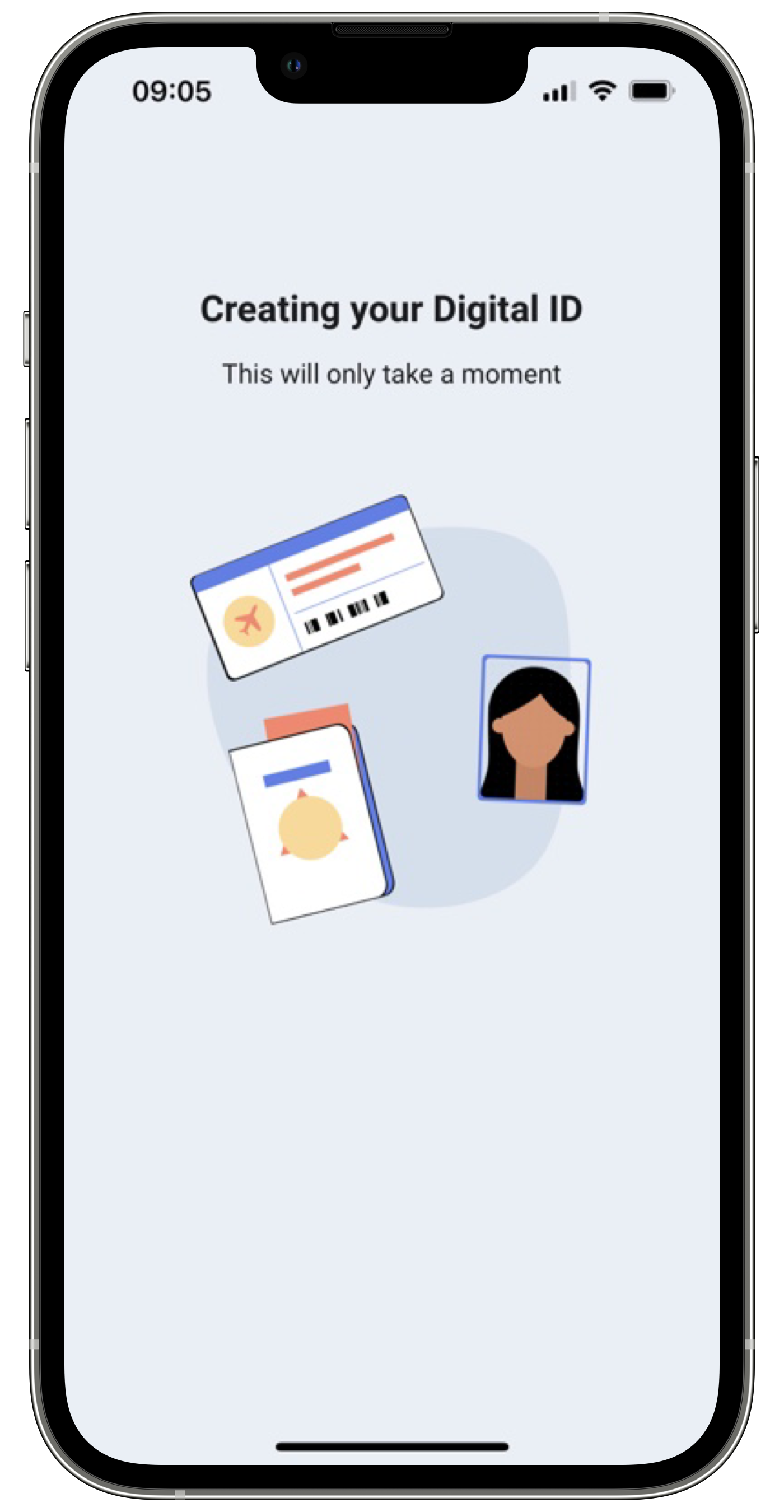
You can also apply your app’s colors and fonts to these layout solutions, to keep your brand’s image consistent. Check Customization tab to learn more about branding of each view.
@Parcelize
class SubjectCustomViews(
    val loadingView: Class<out ICustomSubject.LoadingView>? = null
) : Parcelable
public class EnrolmentViewRegister {
    ...

    // MARK: - Subject Operations
    public func registerSubjectLoadingOverlayView(_ viewType: SubjectLoadingOverlayViewType)
    ...
}