Error View
When the showErrors flag is set to true in the BiometricFaceCaptureParameters class, then any error that happens in this feature will show a default screen with some information. When the resulting image fails any of the quality tests, then this screen will also appear showing a list of the tests that failed. You can either customize this screen to your branding or set the flag to false and handle the error in your own activity.
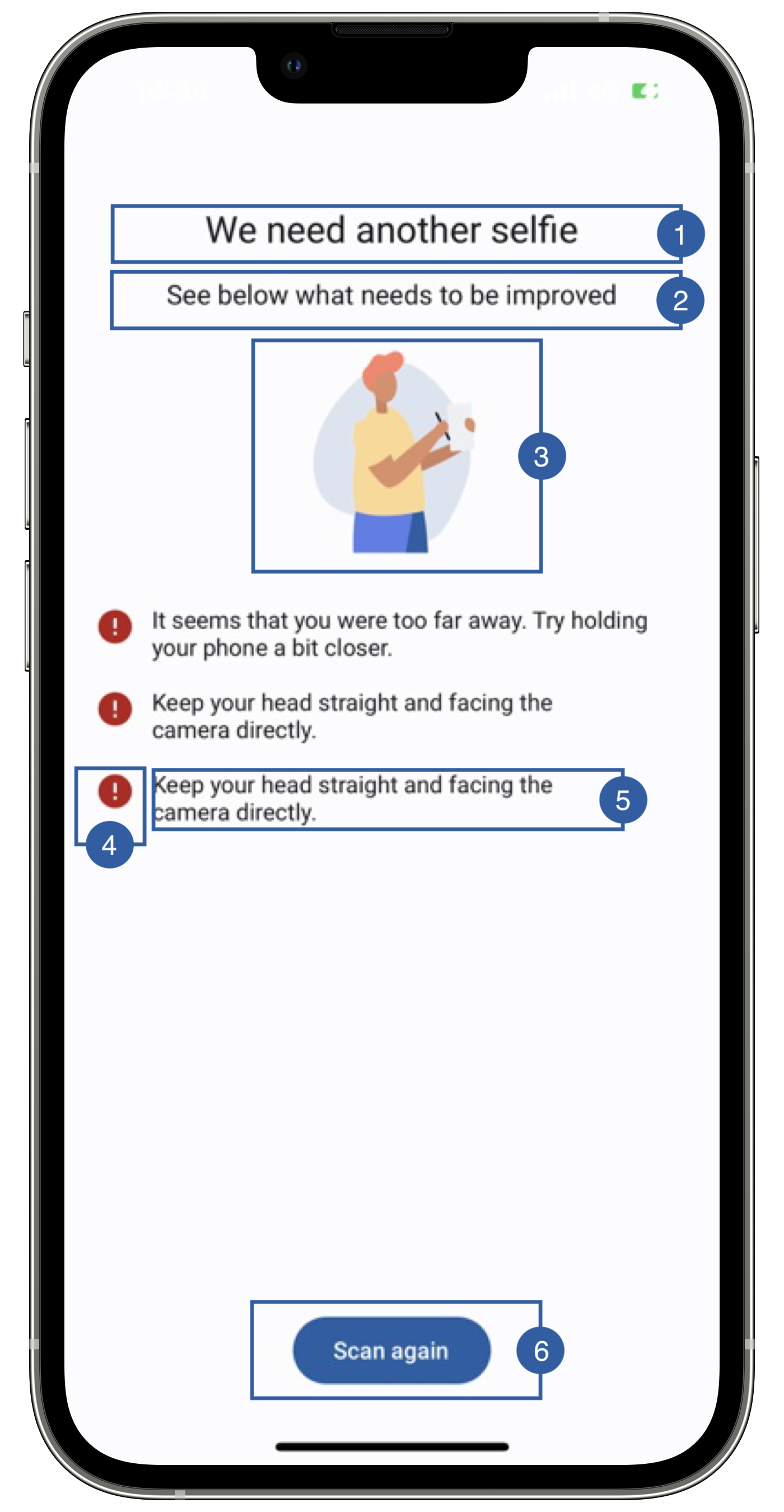
It contains a title(1), a message(2), an image(3), a warning icon(4), a list item layout(5), a retry button(6) and a background that can be customized.
Branding
You can apply your own branding to our screens by overriding the resources we use.
Text resources
You can add your own texts and localization by overriding the following string resources:
<!-- Failed Tests Description -->
<string name="face_capture_failed_tests_title_sdk_enrolment">We need another selfie</string>
<string name="face_capture_failed_tests_subtitle_sdk_enrolment">See below what needs to be improved</string>
<string name="not_eyes_closed_test_desc_sdk_enrolment">Make sure to keep a neutral expression: eyes open, mouth closed.</string>
<string name="angle_test_desc_sdk_enrolment">Keep your head straight and facing the camera directly.</string>
<string name="relative_eyeline_frame_test_desc_sdk_enrolment">Make sure your face is centered and fully visible within the frame</string>
<string name="face_too_far_test_desc_sdk_enrolment">It seems that you were too far away. Try holding your phone a bit closer.</string>
<string name="face_too_close_test_desc_sdk_enrolment">It seems that you were too close to the camera. Try holding your phone farther away.</string>
<string name="multiple_face_test_desc_sdk_enrolment">Only the document owner should be in the frame.</string>
<string name="image_blurred_test_desc_sdk_enrolment">The picture was not clear enough.</string>
<string name="face_capture_liveness_check_test_sdk_enrolment">This seems to be a picture of a picture. It must really be a real-time selfie.</string>
The best way to override strings is by adding your key through the Theme class for the title and subtitle
Theme.shared.strings.faceCapture.titleQualityTests.localized()
Theme.shared.strings.faceCapture.subtitleQualityTests.localized()
The best way to override strings is by adding your key through the Theme class for the button
Theme.shared.strings.buttons.retake.localized()
Colors
You can change the text colors by overriding the following color resource (It affects all texts):
<color name="colorOverlayInvalidTxtSdkEnrolment">#1A1C1E</color>
You can change the background color by overriding the following color resource:
<color name="colorOverlayInvalidBgSdkEnrolment">#F1F0F4</color>
You can change the color of the labels
Theme.shared.colors.faceCapture.titleDark
You can change the color of the button (this affects all primary style buttons)
Theme.shared.colors.button.primaryBackground
Theme.shared.colors.button.primaryTitle
Styles
You can extend the styles we use and override any properties (textColor, textSize, fontFamily, etc...) you want.
<style name="Theme.Sdk.Enrolment.TextView.Dark.Title.Centered">
<style name="Theme.Sdk.Enrolment.TextView.Dark.Subtitle.Centered">
You can change the font through the theme class (this will affect all text in the app):
Theme.shared.fonts.bold
Theme.shared.fonts.regular
Image
You can change the loading image by adding a drawable with this name:
ic_face_capture_failed_sdk_enrolment.xml
You can change the image by adding a asset file and overriding the following image name in Theme class
Theme.shared.images.faceCapture.errorRedCircle
Theme.shared.images.faceCapture.improveSelfie