Preview View
If the flag showPreview is set to true, then, when the boarding pass is parsed successfully, the preview view is going to show the details of the boarding pass.
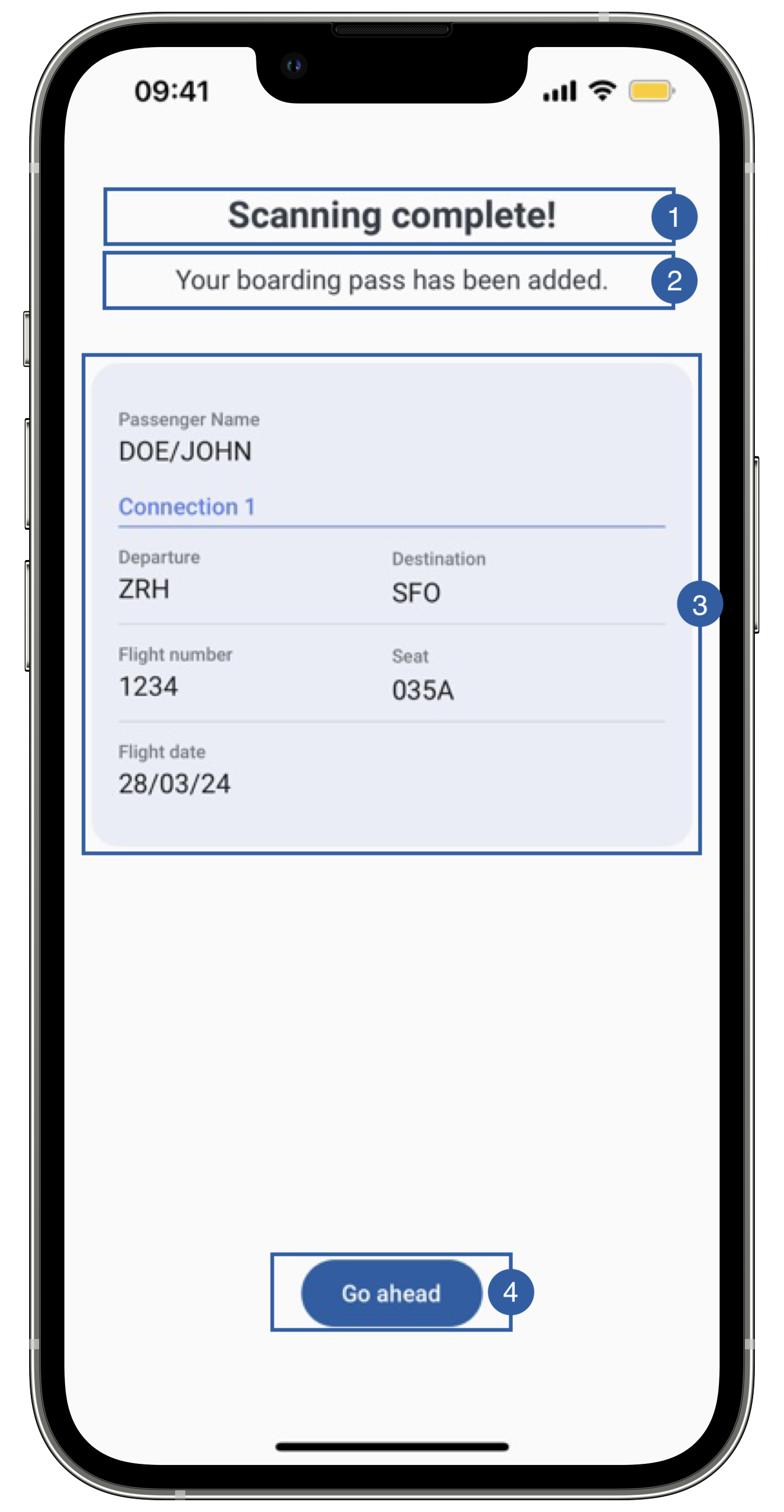
It contains a title(1), a message(2), a subview(3) containing all boarding pass information, a button(4) to finish the flow and a background that can be customized.
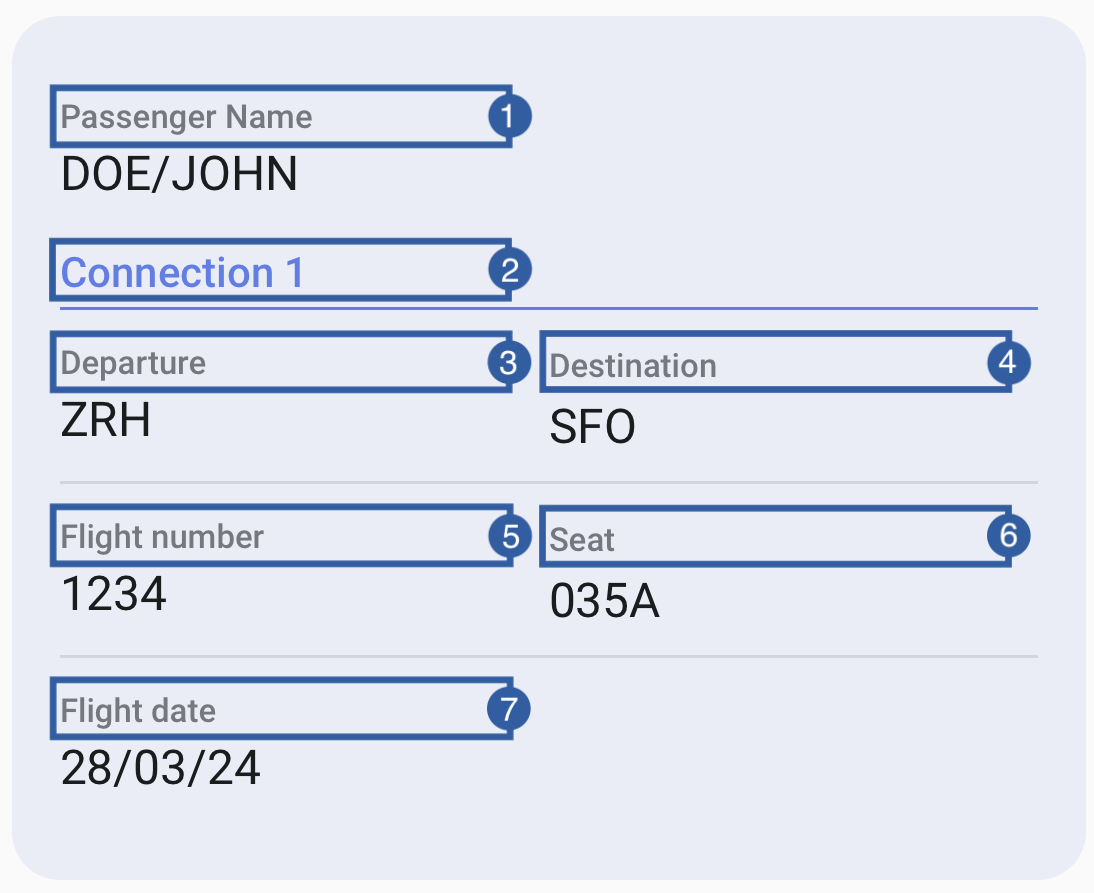
The subview is a group that displays all the information collected from the boarding pass. It contains multiple labels, and beneath each label, it will be displayed the corresponding information.
- Passenger name
- Connection Section
- Departure
- Destination
- Flight number
- Seat
- Flight Date
Branding
You can apply your own branding to our screens by overriding the resources we use.
Text resources
You can add your own texts and localization by overriding the following string resources:
<string name="document_reader_mrzScan_success_title_sdk_enrolment">Scanning complete!</string>
<string name="boarding_pass_preview_success_subtitle_sdk_enrolment">Your boarding pass has been added.</string>
<string name="bt_continue_sdk_enrolment">Go ahead</string>
<!-- Subview labels -->
<string name="boarding_pass_preview_field_name_sdk_enrolment">Passenger</string>
<string name="boarding_pass_preview_field_origin_sdk_enrolment">Departure</string>
<string name="boarding_pass_preview_field_destination_sdk_enrolment">Destination</string>
<string name="boarding_pass_preview_field_flight_number_sdk_enrolment">Flight number</string>
<string name="boarding_pass_preview_field_seat_sdk_enrolment">Seat</string>
<string name="boarding_pass_preview_field_flight_date_sdk_enrolment">Flight date</string>
<string name="boarding_pass_preview_leg_header_format_sdk_enrolment">Connection %d</string>
The best way to override strings is by adding your key through the Theme class
Theme.shared.strings.boardingPassPreview.title
Theme.shared.strings.boardingPassPreview.subtitle
Theme.shared.strings.boardingPassPreview.passengerName
Theme.shared.strings.boardingPassPreview.legHeaderFormat
Theme.shared.strings.boardingPassPreview.origin
Theme.shared.strings.boardingPassPreview.destination
Theme.shared.strings.boardingPassPreview.flightNumber
Theme.shared.strings.boardingPassPreview.seat
Theme.shared.strings.boardingPassPreview.flightDate
Theme.shared.strings.buttons.continue
Colors
You can change the text colors by overriding the following color resource (It affects all texts):
<color name="colorFaceCaptureTxtDarkSdkEnrolment">#1A1C1E</color>
You can change the background color of the view or the details card by overriding the following color resources:
<color name="colorBoardingPassBgSdkEnrolment">#FDFCFF</color> <!-- Outside view -->
<color name="colorDocumentPreviewBg">#EAEEF6</color> <!-- Card -->
You can change the buttons text and background color by overriding the following color resources:
<color name="colorButtonBlueBackgroundTintSdkEnrolment">#1F5FA6</color>
<color name="colorButtonBlueTextSdkEnrolment">@android:color/white</color>
You can change the text colors by overriding the following color in Theme class
Theme.shared.colors.documentData.title // title(1) and message(2)
Theme.shared.colors.datafield.title
Theme.shared.colors.datafield.value
Theme.shared.colors.boardingPassPreview.legHeader // Connection Section (for both text and separate)
Theme.shared.colors.boardingPassPreview.background
Theme.shared.colors.common.backgroundCards // card color (It affects other screens)
Theme.shared.colors.button.primaryBackground
Theme.shared.colors.button.primaryTitle
Styles
You can extend the styles we use and override any properties (textColor, textSize, fontFamily, etc...) you want.
<style name="Theme.Sdk.Enrolment.TextView.Dark.Title.Centered">
<style name="Theme.Sdk.Enrolment.TextView.Dark.Subtitle.Centered">
<style name="Theme.Sdk.Enrolment.Button.Blue">
You can change the font through the theme class (this will affect all text in the app):
Theme.shared.fonts.bold
Theme.shared.fonts.regular
Theme.shared.fonts.medium