Error View
In case any error happens in the Boarding pass flow and the flag showErrors is active, the Error View will appear in order to give the final user feedback as to may have gone wrong, allowing them to retry or cancel.
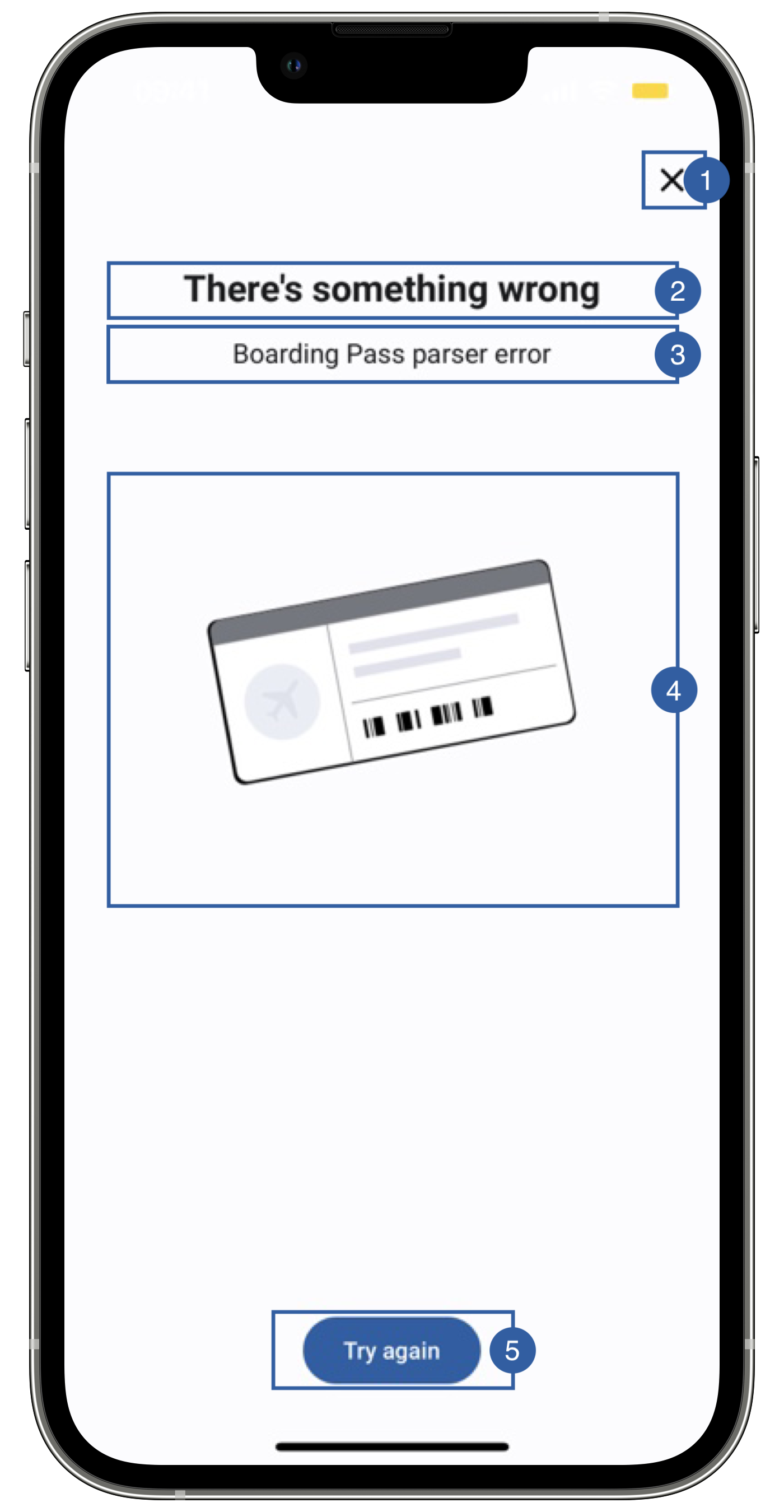
It contains a close button(1), a title(2), a message(3), an image(4), a retry button (5) and a background that can be customized.
The subtitle text will be the description of the error.
Branding
You can apply your own branding to our screens by overriding the resources we use.
Text resources
You can add your own texts and localization by overriding the following string resources:
<string name="feature_failure_title_sdk_enrolment">There\'s something wrong</string>

<!-- Button text (Used in multiple places) -->
<string name="try_again_sdk_enrolment">Try again</string>
The best way to override strings is by adding your key through the Theme class for the title
Theme.shared.strings.common.failureTitle
"boarding_pass_barcorde_empty_error" = "Boarding Pass barcorde is empty";
"boarding_pass_format_not_supported_error" = "Boarding Pass format not supported";
"boarding_pass_parser_error" = "Boarding Pass parser error";
"boarding_pass_config_error" = "Error reading Boarding Pass";
"boarding_pass_not_valid_error" = "Boarding Pass not valid";
"boarding_pass_cancelled_error" = "Boarding Pass cancelled Error";
Colors
You can change the text colors by overriding the following color resource (It affects all texts):
<color name="colorOverlayInvalidTxtSdkEnrolment">#1A1C1E</color>
You can change the background color by overriding the following color resource:
<color name="colorOverlayInvalidBgSdkEnrolment">#F1F0F4</color>
You can change the buttons text and background color by overriding the following color resources:
<color name="colorButtonBlueBackgroundTintSdkEnrolment">#1F5FA6</color>
<color name="colorButtonBlueTextSdkEnrolment">@android:color/white</color>
You can change the text colors by overriding the following color in Theme class
Theme.shared.colors.faceCapture.titleDark// title(2) and message(3) (It affects other screens)
Theme.shared.colors.faceCapture.background (It affects other screens)
Theme.shared.colors.common.black
Theme.shared.colors.button.primaryBackground
Theme.shared.colors.button.primaryTitle
Styles
You can extend the styles we use and override any properties (textColor, textSize, fontFamily, etc...) you want.
<style name="Theme.Sdk.Enrolment.TextView.Dark.Title.Centered">
<style name="Theme.Sdk.Enrolment.TextView.Dark.Subtitle.Centered">
<style name="Theme.Sdk.Enrolment.Button.Blue">
You can change the font through the theme class (this will affect all text in the app):
Theme.shared.fonts.bold
Theme.shared.fonts.regular
Image
You can change the image by adding a drawable with this name:
ic_boardingpass_gray_large_sdk_enrolment.xml
You can change the cancel button icon by adding a drawable with this name:
ic_close.xml
You can change the image by adding a asset file and overriding the following image name in Theme class
Theme.shared.images.buttons.closeButton // It affects all close buttons
Theme.shared.images.boardingPass.boardingPassError